To log in to mARH, we need a user account. If we do not have an account, we can create one by clicking on the 'Register' button.
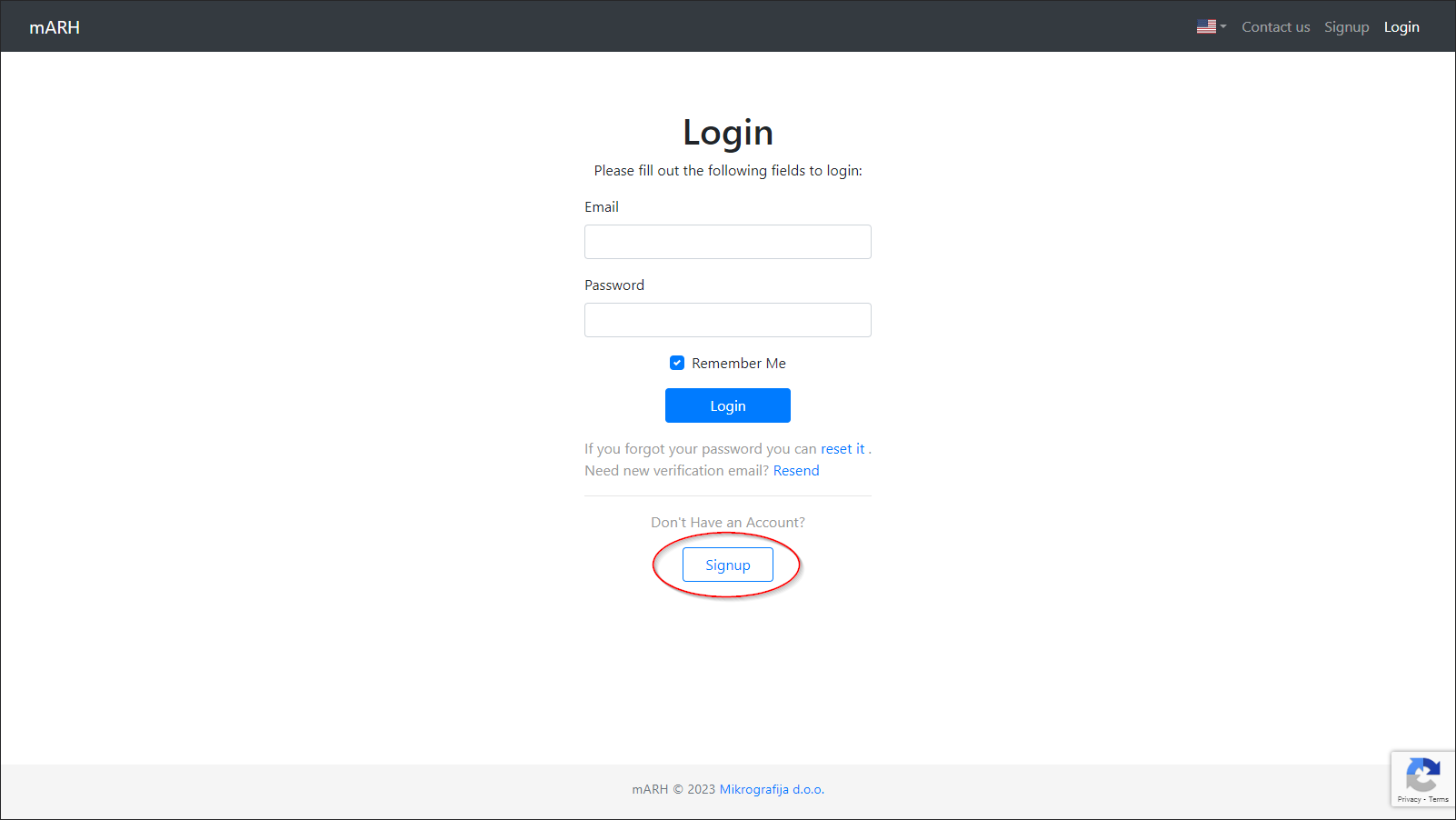
(Figure 1)
All fields must be filled in when we are registering.
The password we enter must be at least 8 characters long.
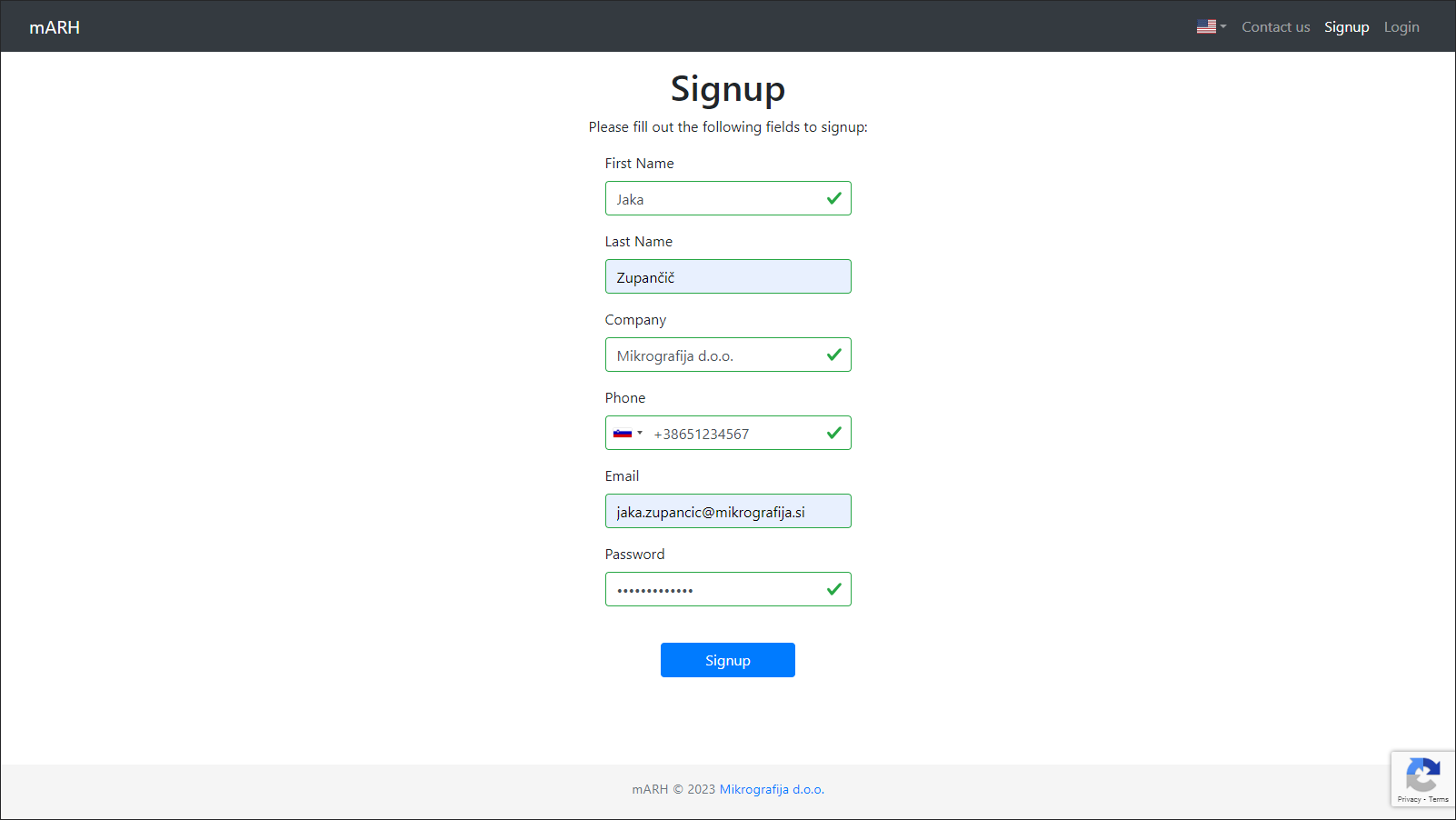
(Figure 2)
If the registration has been successful, we will receive a notification asking us to check our e-mail, where we have to confirm the account registration.
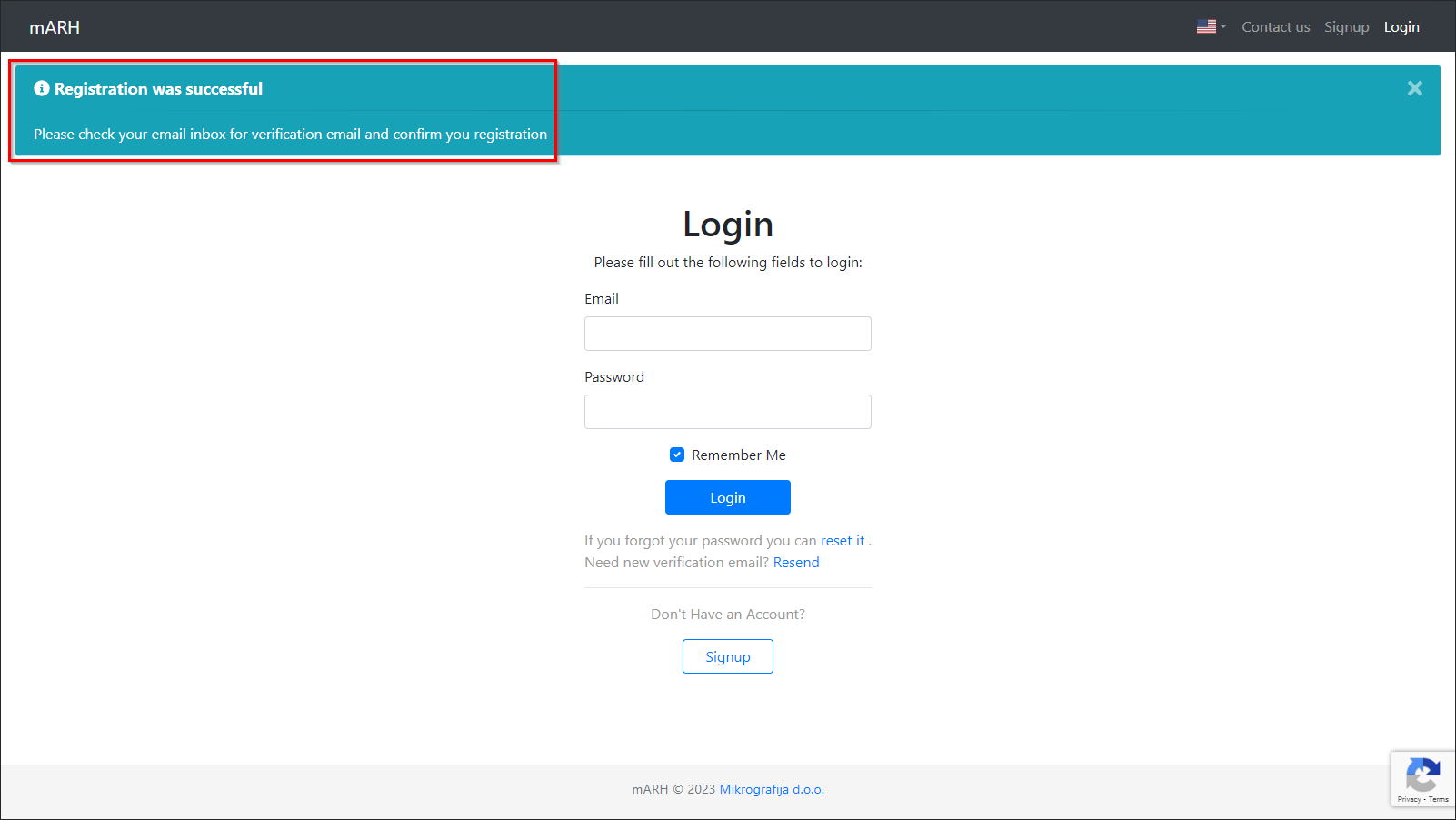
(Figure 3)
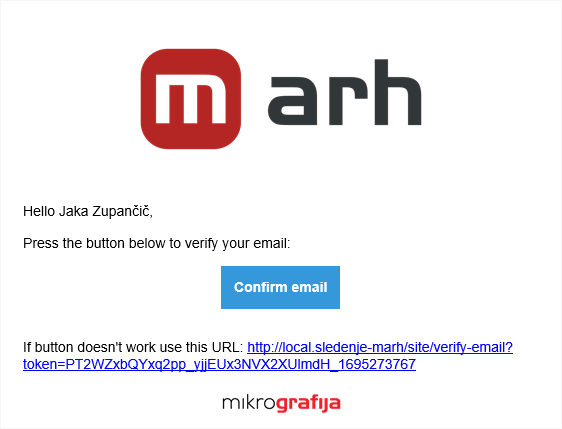
The following message is sent to the e-mail address we entered.
Clicking on the 'Confirm E-mail' button will take us back to the login page, where we will see a notification that the entered e-mail has been successfully confirmed (Figure 5.1).
(Figure 4)
If the entered e-mail has been prematurely linked to a specific company, we are redirected to the mARH homepage as soon as we confirm the e-mail address.
If the entered e-mail is not bound to any company, we cannot access mARH yet; the administrator has to manually set up the company for us first.
Once our account has been confirmed by the administrator, we can log in with our e-mail address and password.
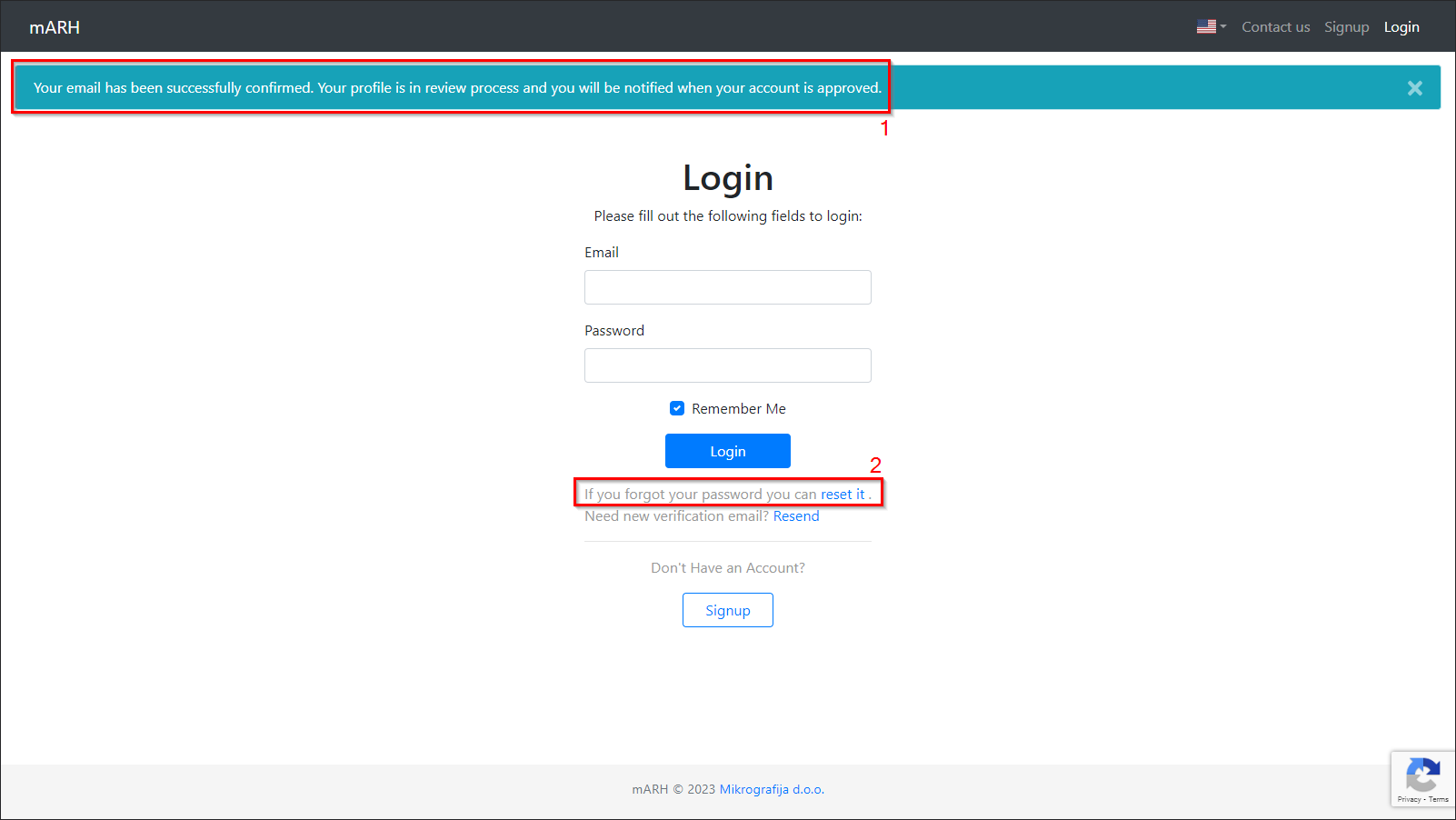
(Figure 5)
In case we have forgotten our password, we can reset it by clicking on the button (Figure 5.2).
Enter the e-mail we want to reset our password with and follow the instructions we received on our e-mail address.
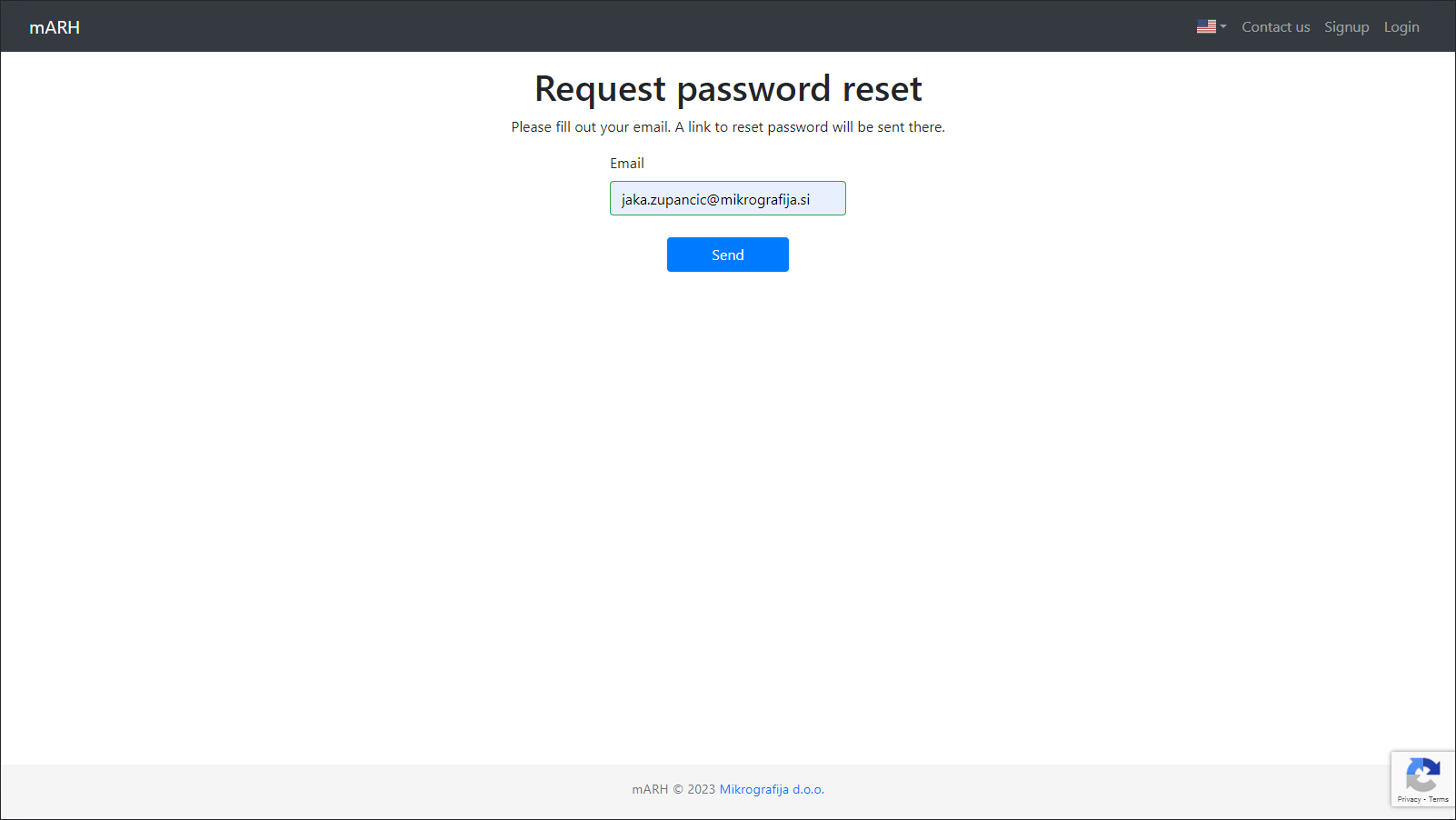
(Figure 6)