After a successful login, the mARH home screen (archive) will open.
Here we can:
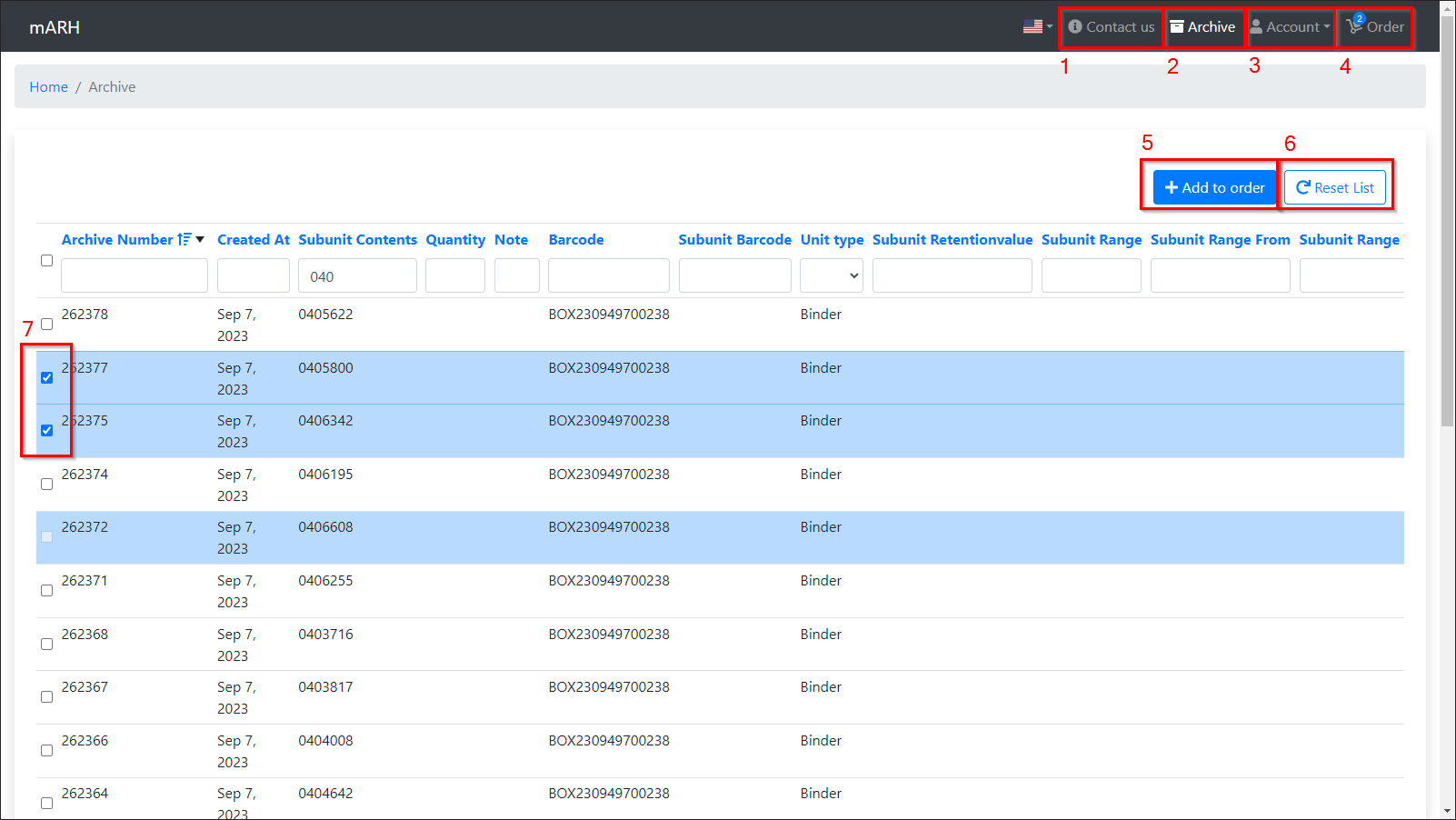
- Contact the administrator (Figure 1.1)
- View the full archive (Figure 1.2)
- View and edit our user account details (Figure 1.3)
- Add a new order (Figure 1.4)
- Take delivery of the ordered material
Archive overview
Clicking on the archive button (Figure 1.2) or initially logging in to the system brings up a table of all the material (Figure 1) that can be viewed with our user account.
Searching can be assisted by filtering by column using the search fields.
- The search terms can be reset by clicking on the 'Reset search' button (Figure 1.6)
The rows highlighted in blue without a tick (Figure 1.7) represent material that has already been added to the purchase order - this material cannot be added to a new purchase order.
The blue highlighted rows with a tick (Figure 1.7) represent the currently selected material.
- To select a material, click on each row.
- The selected material can be added to a new order by clicking on the button (Figure 1.5).
(Figure 1)
Adding an order
We add the material to the order by searching for it in the archive, selecting it (Figure 1.7) and clicking on the 'Add to order' button (Figure 1.5).
- The 'Order' button (Figure 1.4) displays the number of materials already added to the order.
When we have added all the required material to the order form (or we could not find it in the archive - we can submit an empty order), we click on the 'Order' button (Figure 1.4), which displays the screen for adding orders.
(Figure 2)
Order
The next step in adding an order is to review all the materials we want to have on the order.
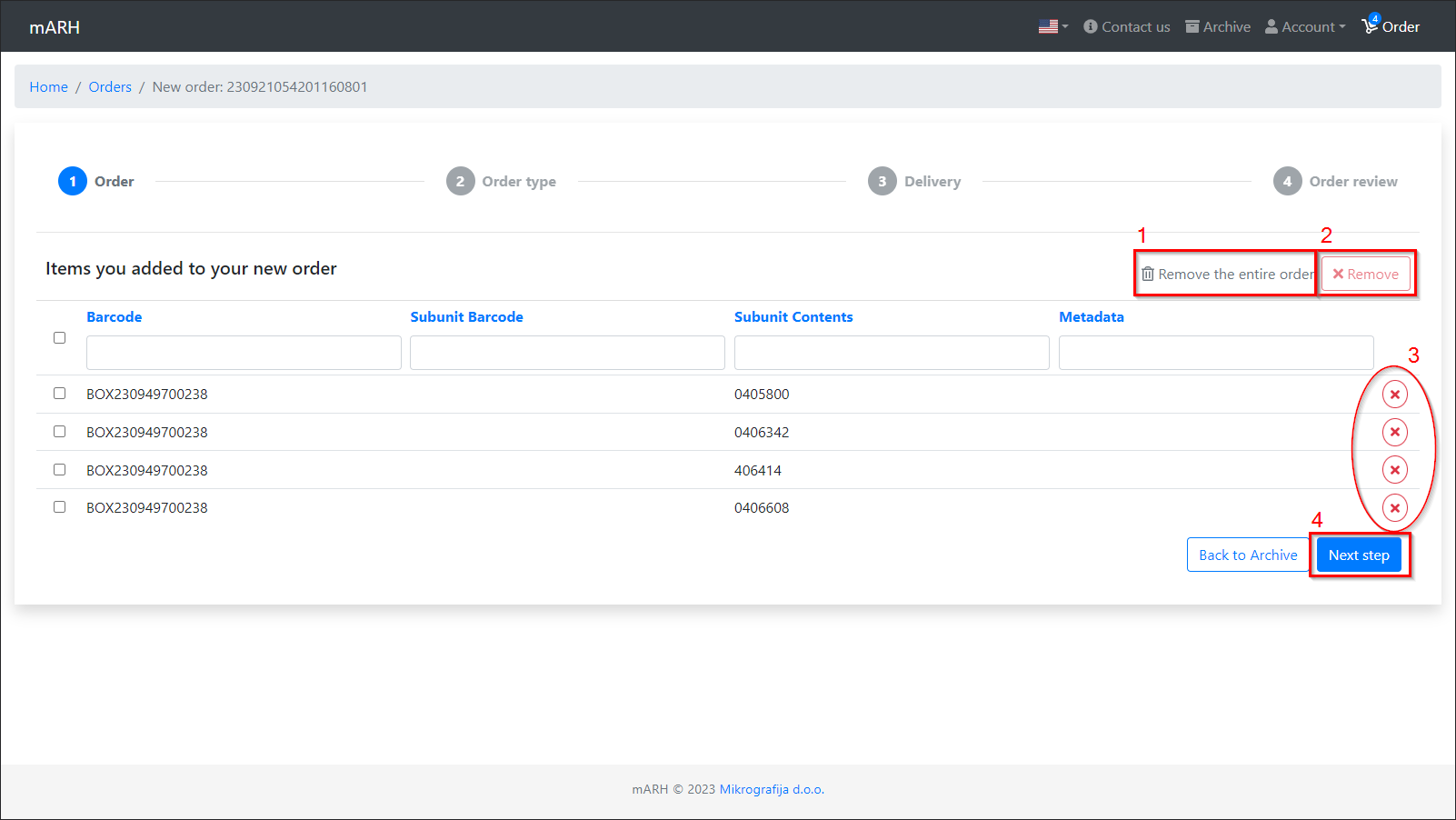
Here, we can remove material from the order in three ways:
- Remove the entire order (Figure 2.1) - Deletes the entire order and returns us to review the archive
- Remove individual material (Figure 2.3)
- Remove selected material (Figure 2.2) - First mark the material by clicking on the desired line (it turns blue). Clicking the button will remove these lines.
When we finish reviewing the material, we continue by clicking on the 'next step' button (Figure 2.4).
NOTE: If we haven't added any address to our account yet, we can't proceed with placing the order - a popup will appear asking us to add our address before we can proceed
Order type
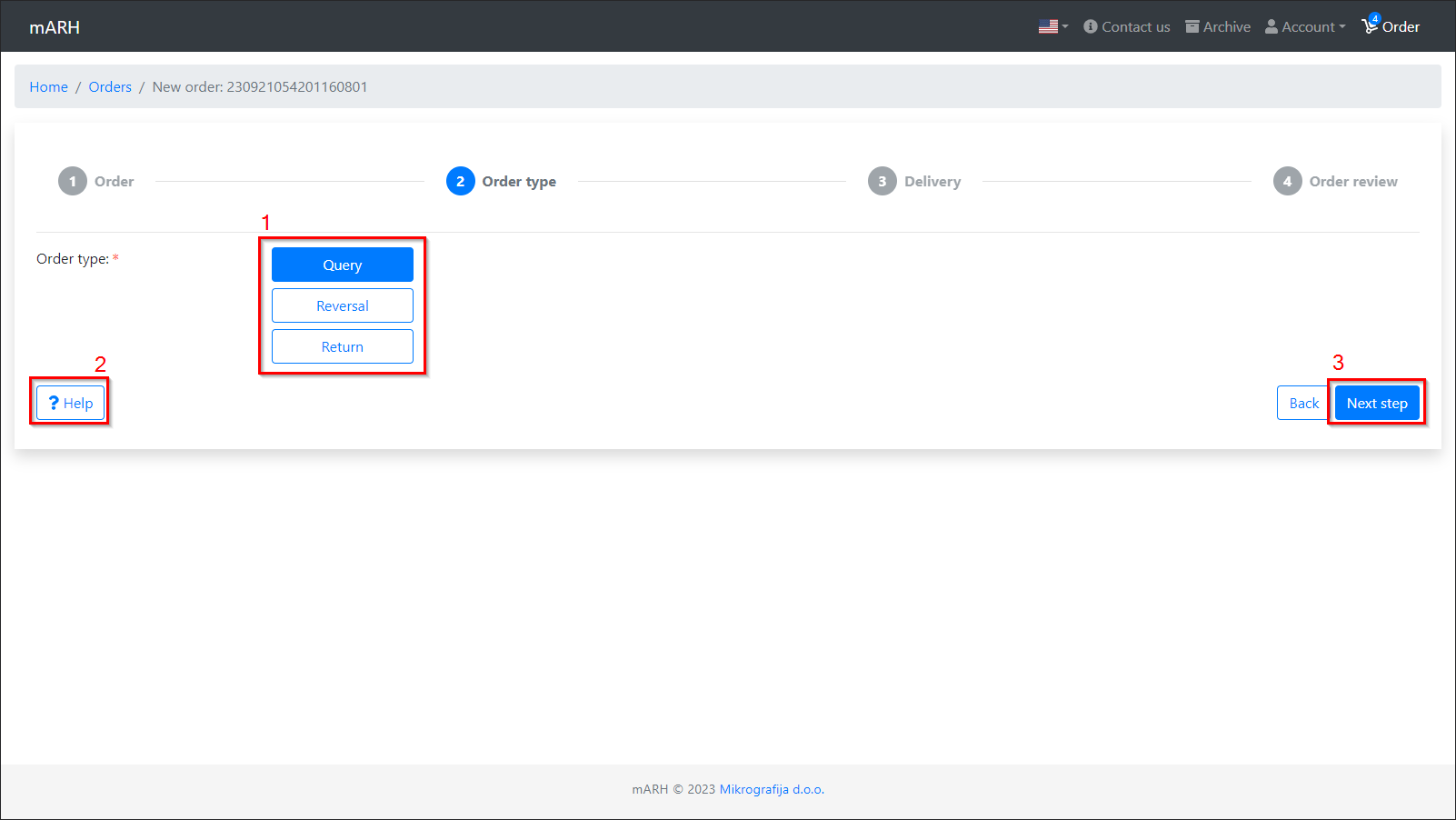
The next step is to choose the type of order. This is done by clicking on one of the buttons (Figure 3.1).
- Detailed information about each order type can be viewed by clicking on the 'Help' button (Figure 3.2).
After selecting the order type, proceed by clicking on the 'Next step' button (Figure 3.3).
(Figure 3)
Delivery
The display for selecting delivery is different depending on which order type we selected in the previous step.
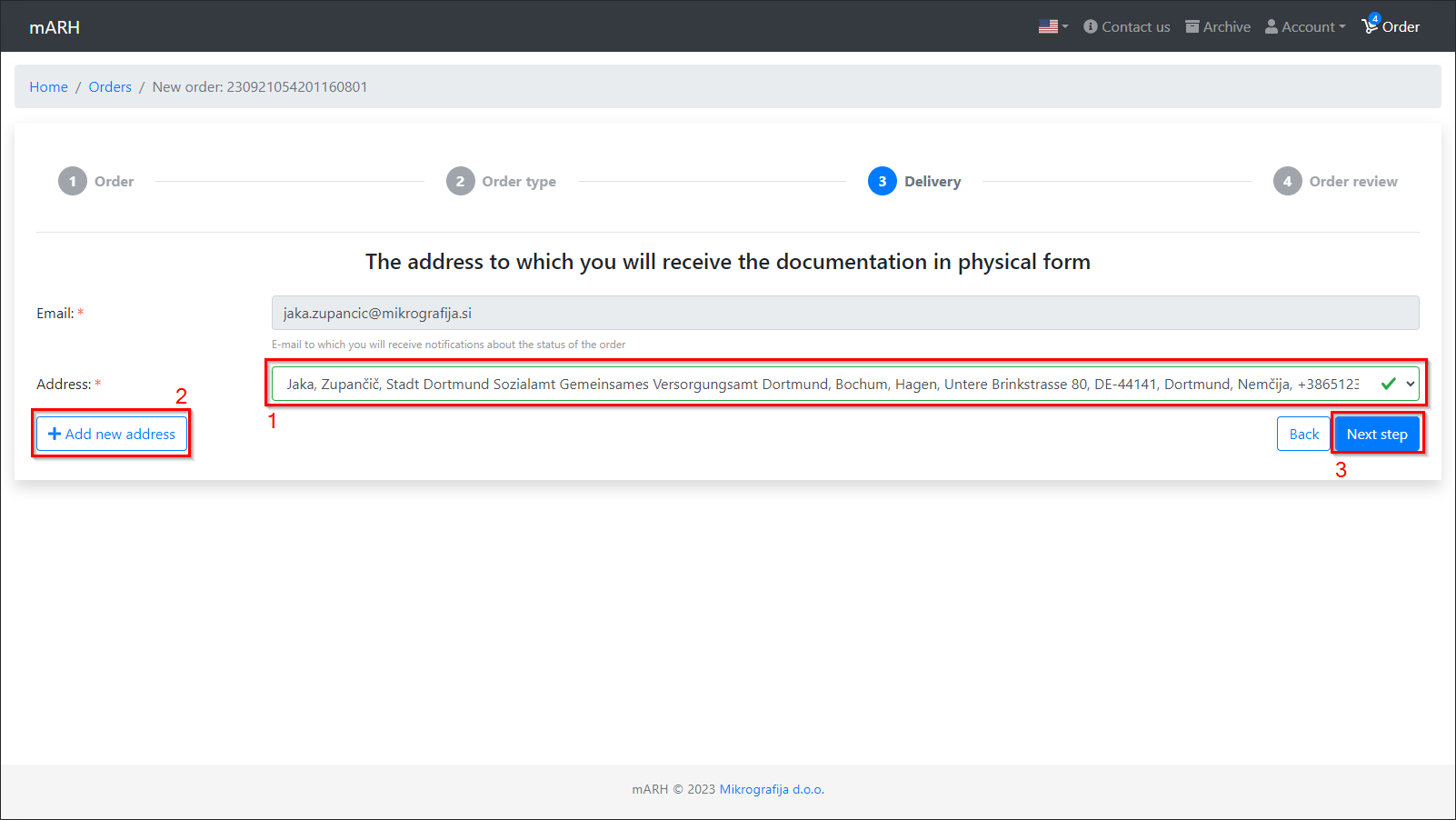
- Selected type 'reverse' or 'return' → display as in the image below (Figure 4).
- Selected type 'enquiry' → display as in the figure below (Figure 4) - 'address' (Figure 4.1) and 'Add new address' (Figure 4.2) are not displayed.
The email address is automatically filled in the same as the one used to create the user account.
In case we have selected the 'reverse' or 'return' type in the previous step, we need to enter the address where we want to receive the material.
- The address is automatically set to the default address of our account (it can also be changed if we have multiple addresses stored).
- We can also add a new address later by clicking on the 'Add new address' button (Figure 4.2).
Continue by clicking on the 'Next step' button (Figure 4.3).
(Figure 4)
Order overview
The last step before placing an order is to check all the data we have entered.
In addition to reviewing the data, it is also necessary to fill in the 'remark' field (Figure 5.1).
- This is for additional notes, e.g., if we have not found the material, we are looking for in the archive to add to the order, we write under notes what exactly we are looking for.
We can also add up to 5 attachments
- Attachments can be 'dragged' to the clipboard (Figure 5.3)
- The clipboard (Figure 5.3) can be clicked on to open the file explorer, within which we can select the desired attachments
Attachments can still be deleted until the order is placed.
Actions, from left to right (Figure 5.2):
- View attachment (if the attachment type allows it) - The attachment is opened in a browser or downloaded to our computer.
- Download the attachment
- Delete the attachment
To finish adding the order, click on the 'Submit Order' button (Figure 5.4).
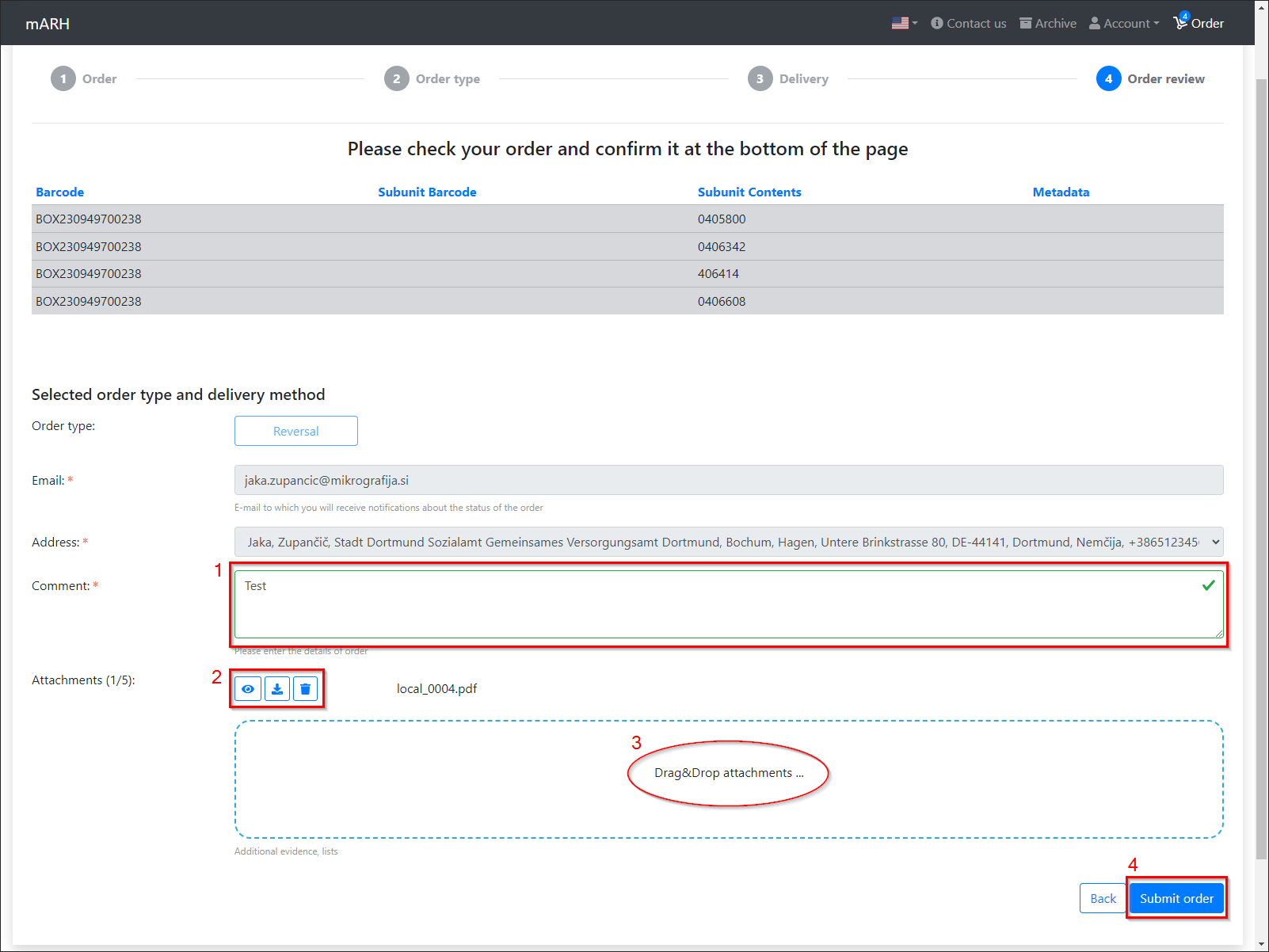
(Figure 5)
Order successfully placed
If the order has been successfully placed, all the details of the placed order and the contact details of the administrator will be displayed.
We can also cancel the order by clicking on the button (Figure 6.1).
- An order can only be cancelled if it has not yet been confirmed by the administrator.
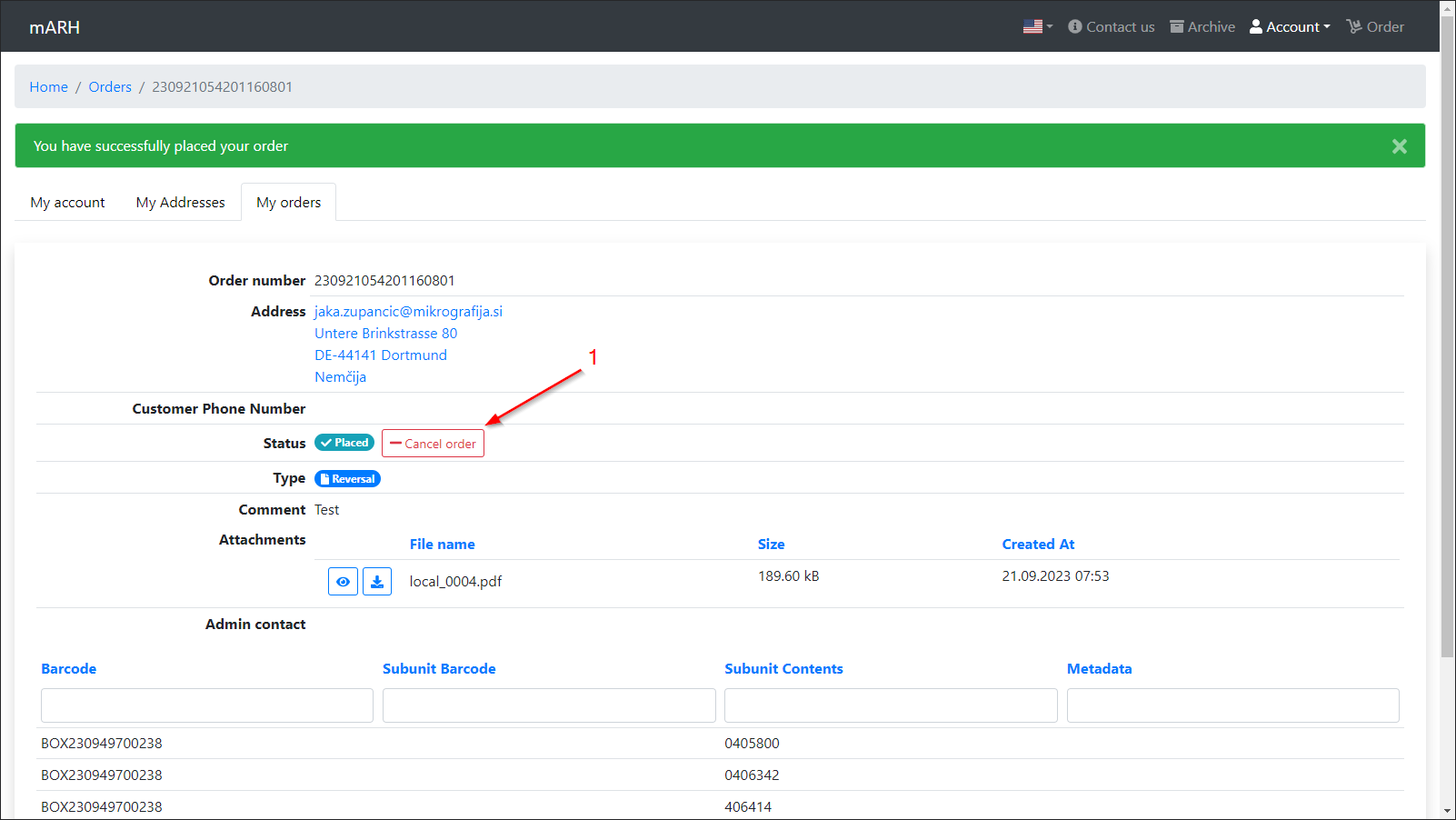
(Figure 6)
Account
The 'Account' tab allows us to view and edit our account details.
My profile
The 'My Profile' tab displays all the details of our user account.
We can change the following information: first name, last name, phone, company name and password.
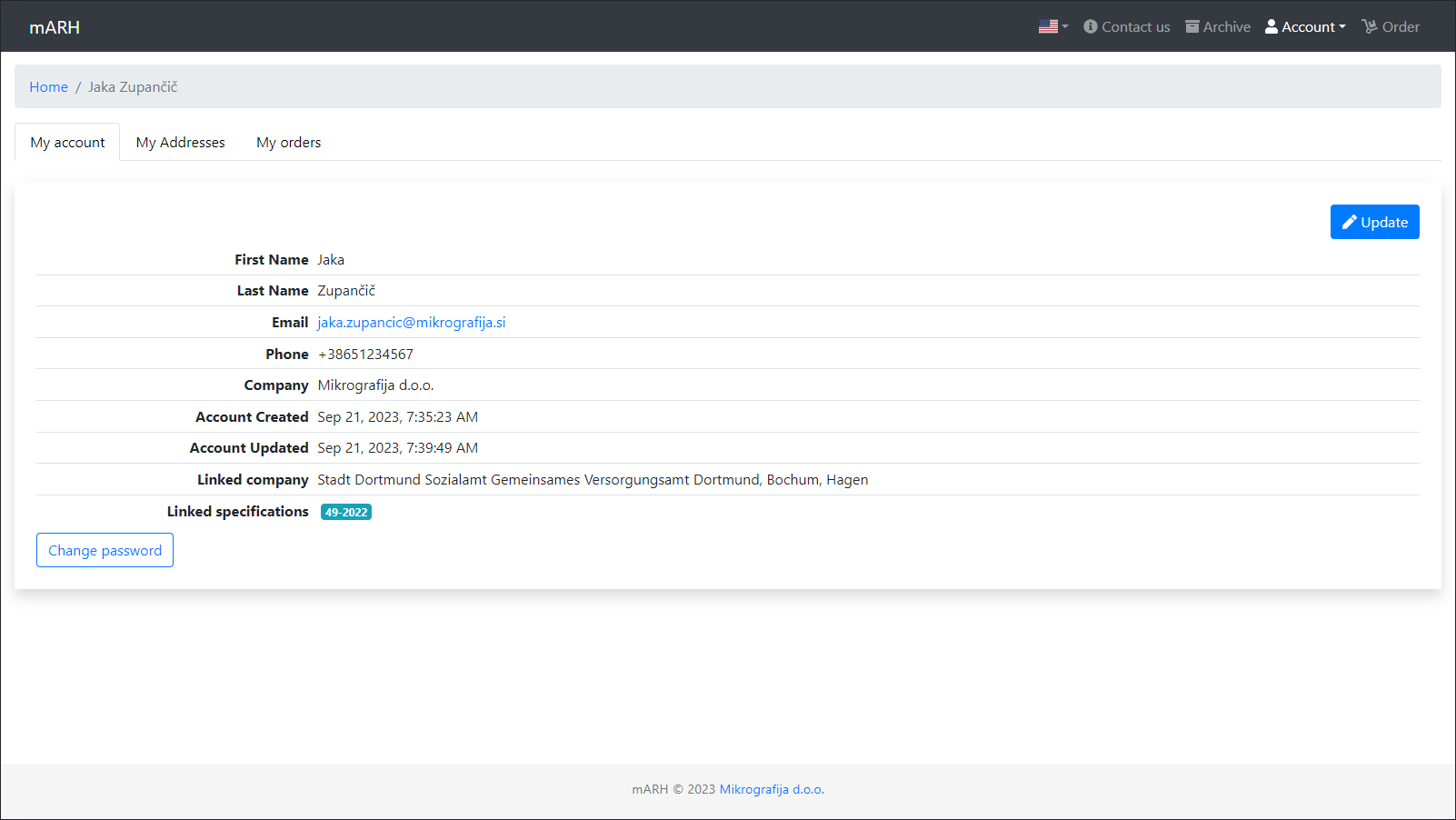
(Figure 7)
My Addresses
The 'My Addresses' tab allows us to view, edit and add addresses.
- An address cannot be deleted if it is set as the default address of the user account (Figure 8.1)
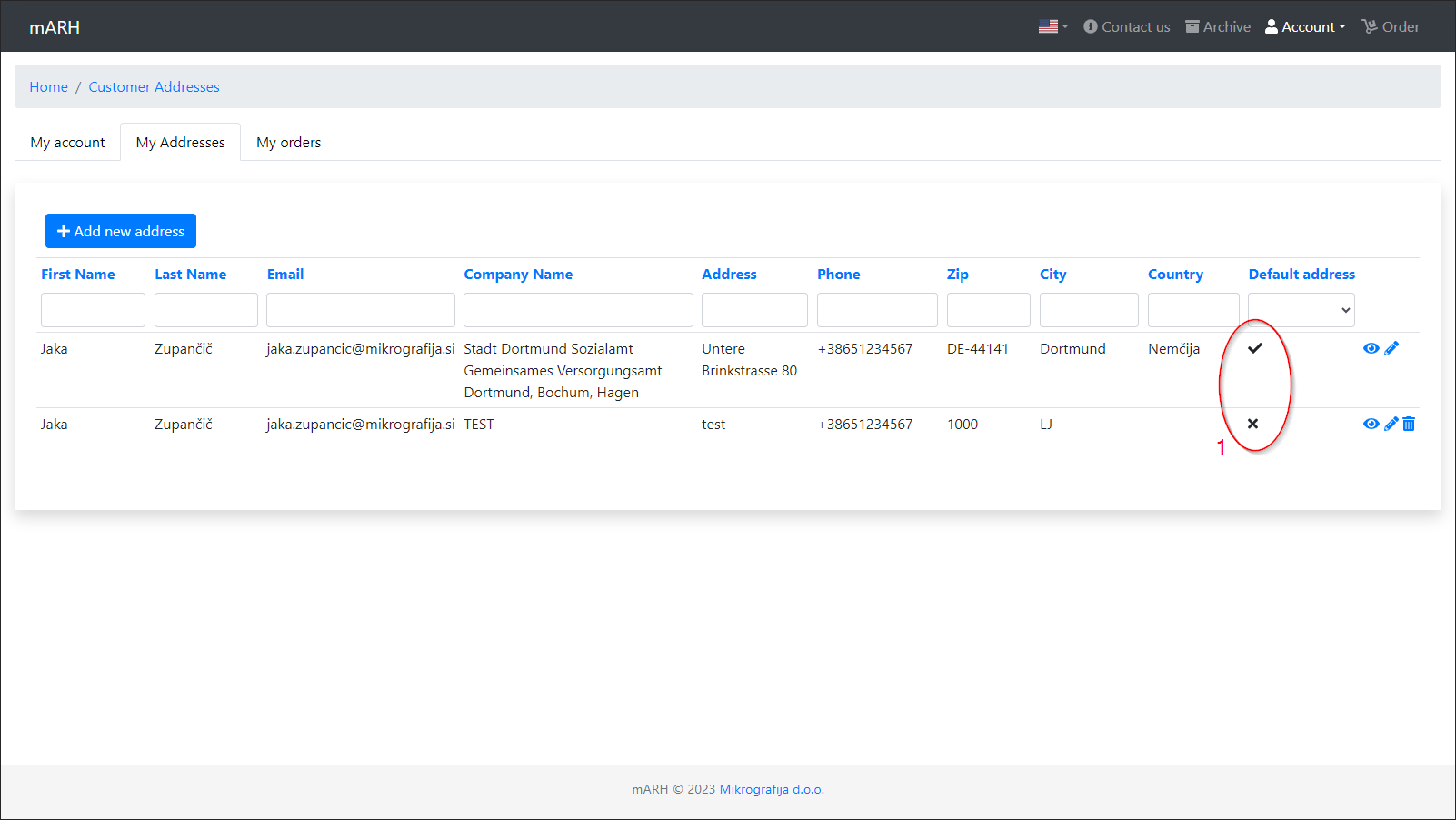
(Figure 8)
My orders
The 'My Orders' tab gives us an overview of all the orders we have created with our account.
Clicking on each row will show us the order details.
- The same screen as when the order was successfully placed will be displayed.
- We have the option to cancel the order until it is confirmed by the administrator.
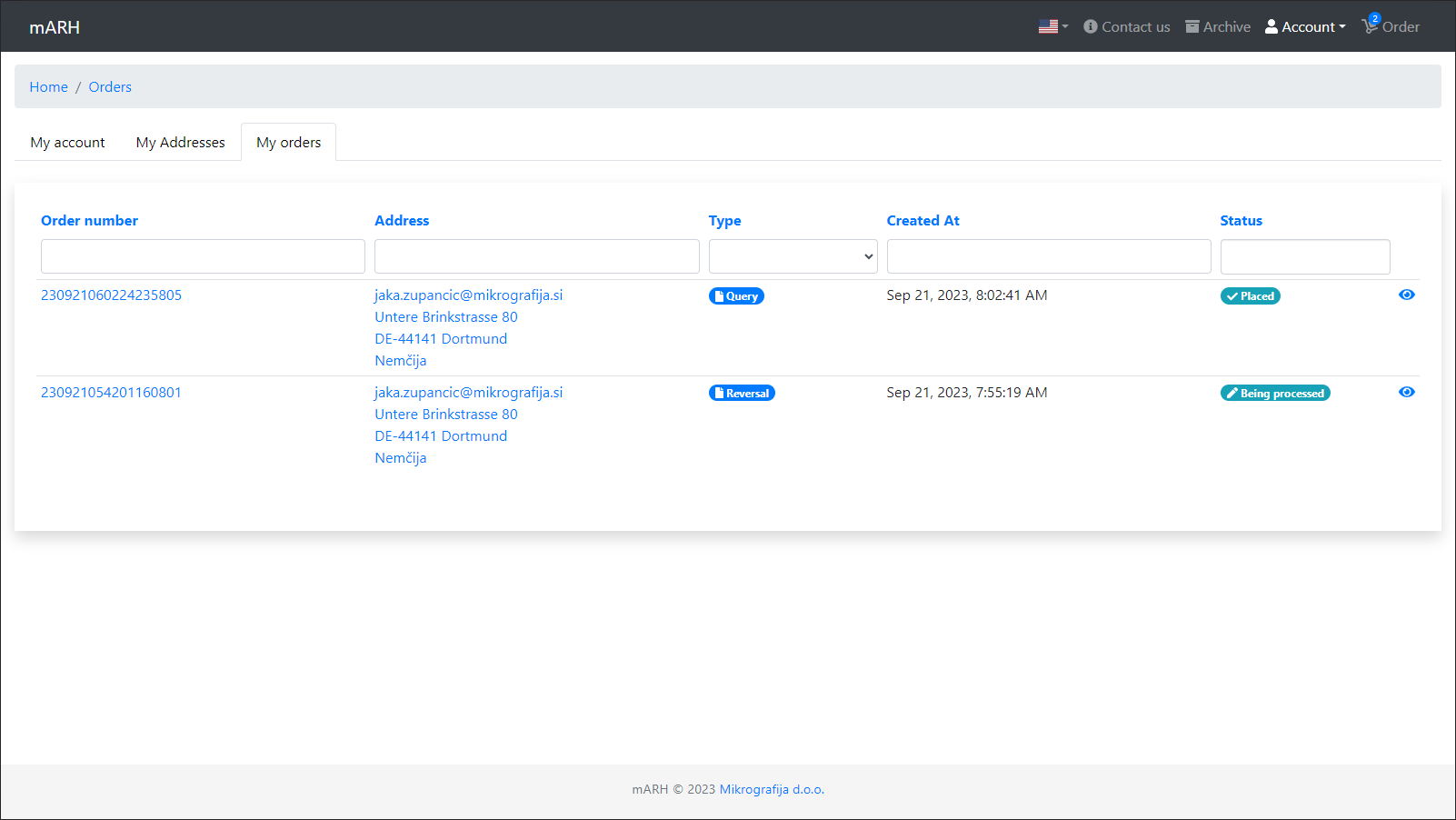
(Figure 9)
Logout
The 'Logout' button logs us out of our logged-in account and returns us to the mARH login page.
Contact of the administrator
If we have a problem or a question, we can send an email to the mARH administrator via the 'Contact us' tab.
If we are logged in to mARH with a user account, the first and last name, email address and phone number fields will be pre-filled automatically.
- All input fields are mandatory
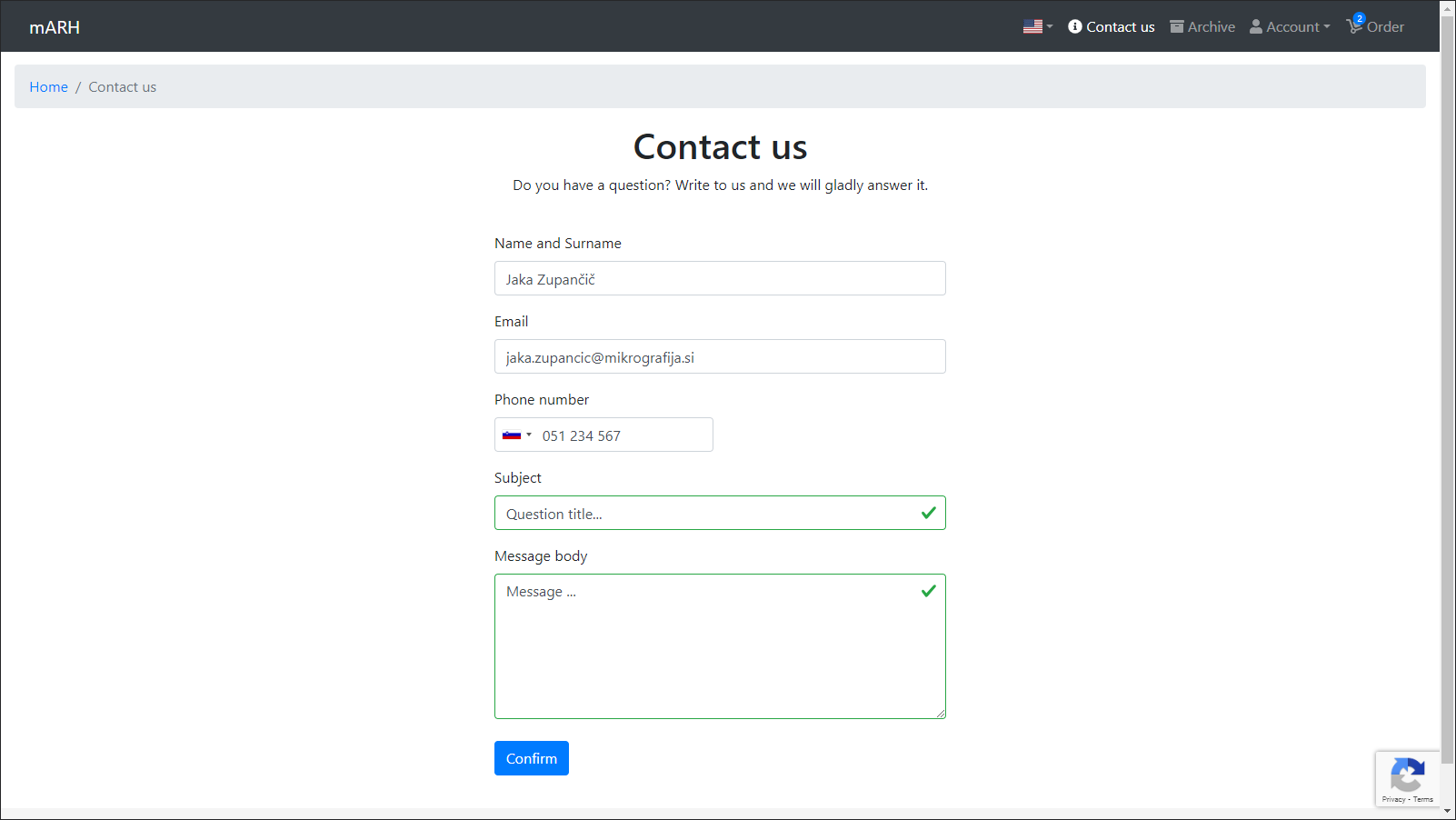
(figure 10)
Acceptance of material
Once our order has been processed and thus completed, its status will change to 'Completed'.
When we open the completed order for the first time (review the details), its status changes to 'Viewed'.
When viewing the details of a completed order, new information is displayed:
- Row with ordered files
- Admin comment
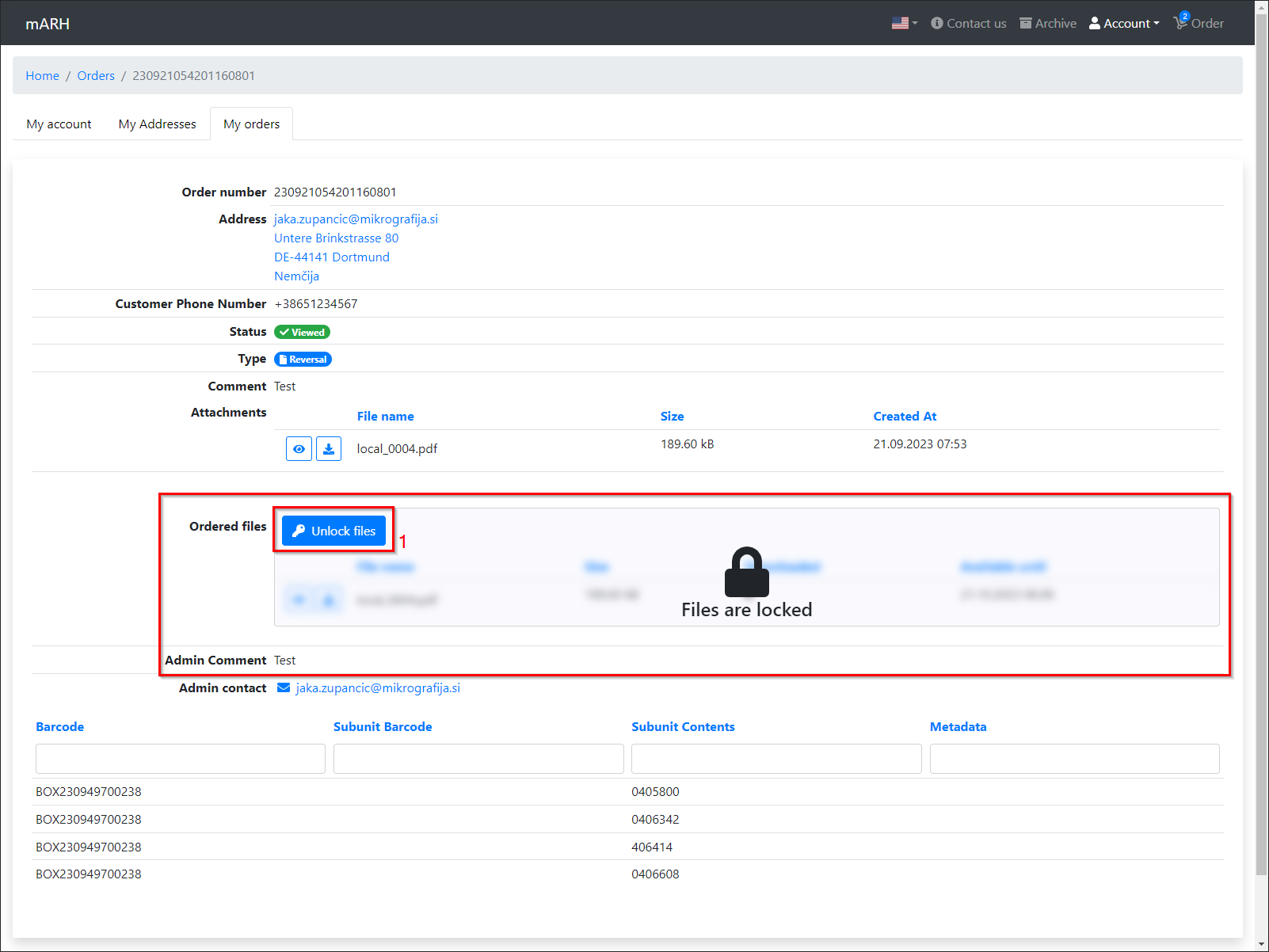
(Figure 11)
Uploaded files will be locked in any case. We unlock them by clicking the 'unlock files' button (Figure 11.1), which opens a pop-up window for unlocking files.
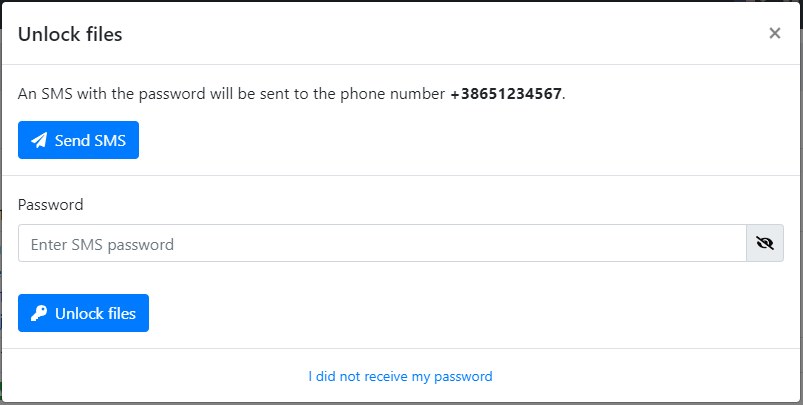
(Figure 12)
Clicking on the 'send SMS' button sends an SMS with a password to the specified phone number (the phone number that was set on the user profile at the time the order was created).
If we did not receive the SMS message, we can click on the 'I did not receive the password' button to resend the SMS message, or inform the system administrator.
Once we have successfully unlocked the documents, we will be presented with options to view and download the files:
- Download All Attachments (Figure 13.2) - starts downloading all files at once as a .zip file
- Download / view individual files (Figure 13.3) - viewing a file only works if our browser supports it. If it does not support it, the file will be downloaded.
Documents remain unlocked for the current browser session - they are locked again when the browser is closed.
- The access password remains the same.
Files must be downloaded before the expiry date (Figure 13.4) - files are deleted after the date shown, regardless of whether they have been downloaded or not.
A warning will be displayed until all files have been downloaded (Figure 13.1).
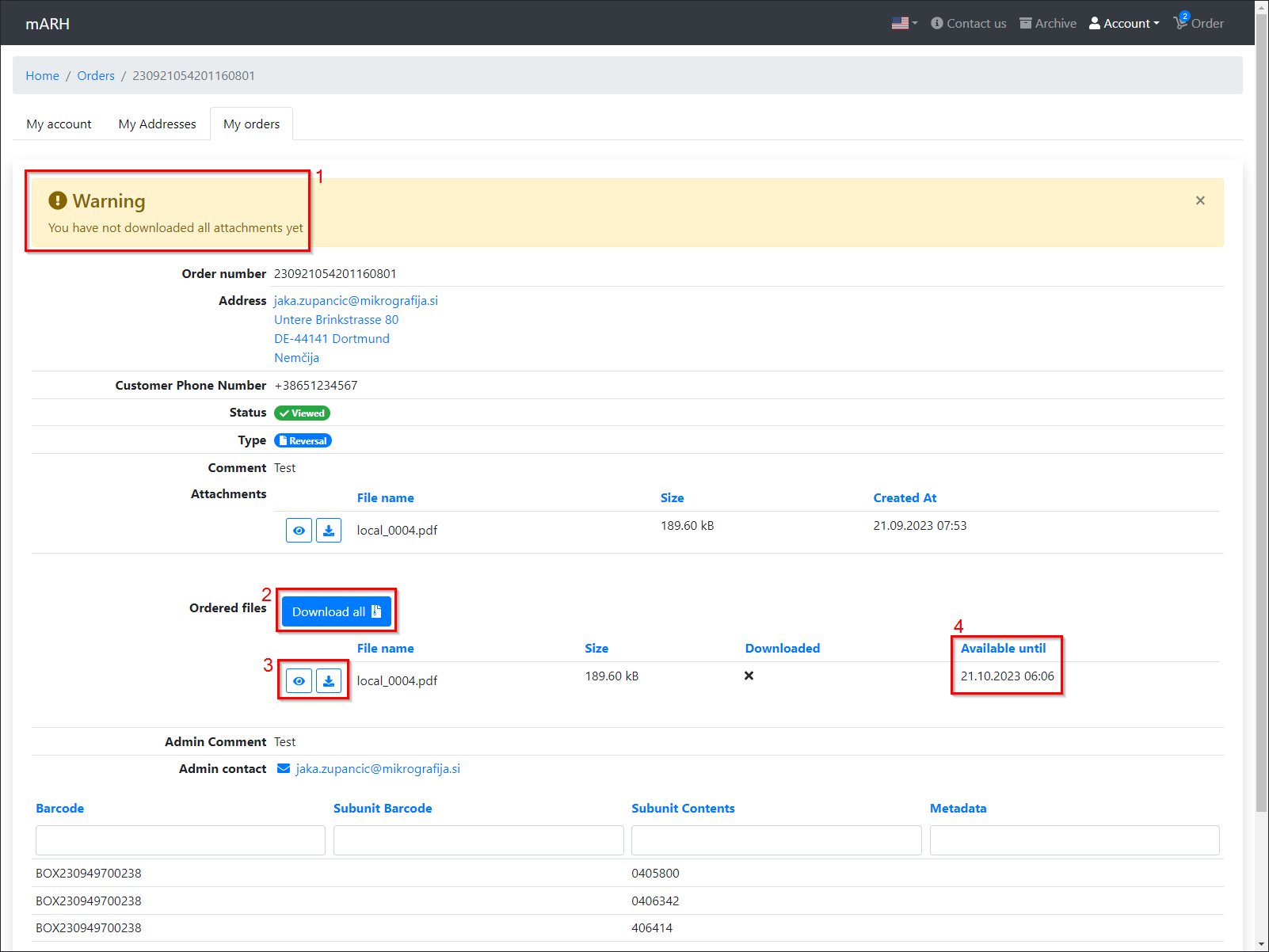
(Figure 13)